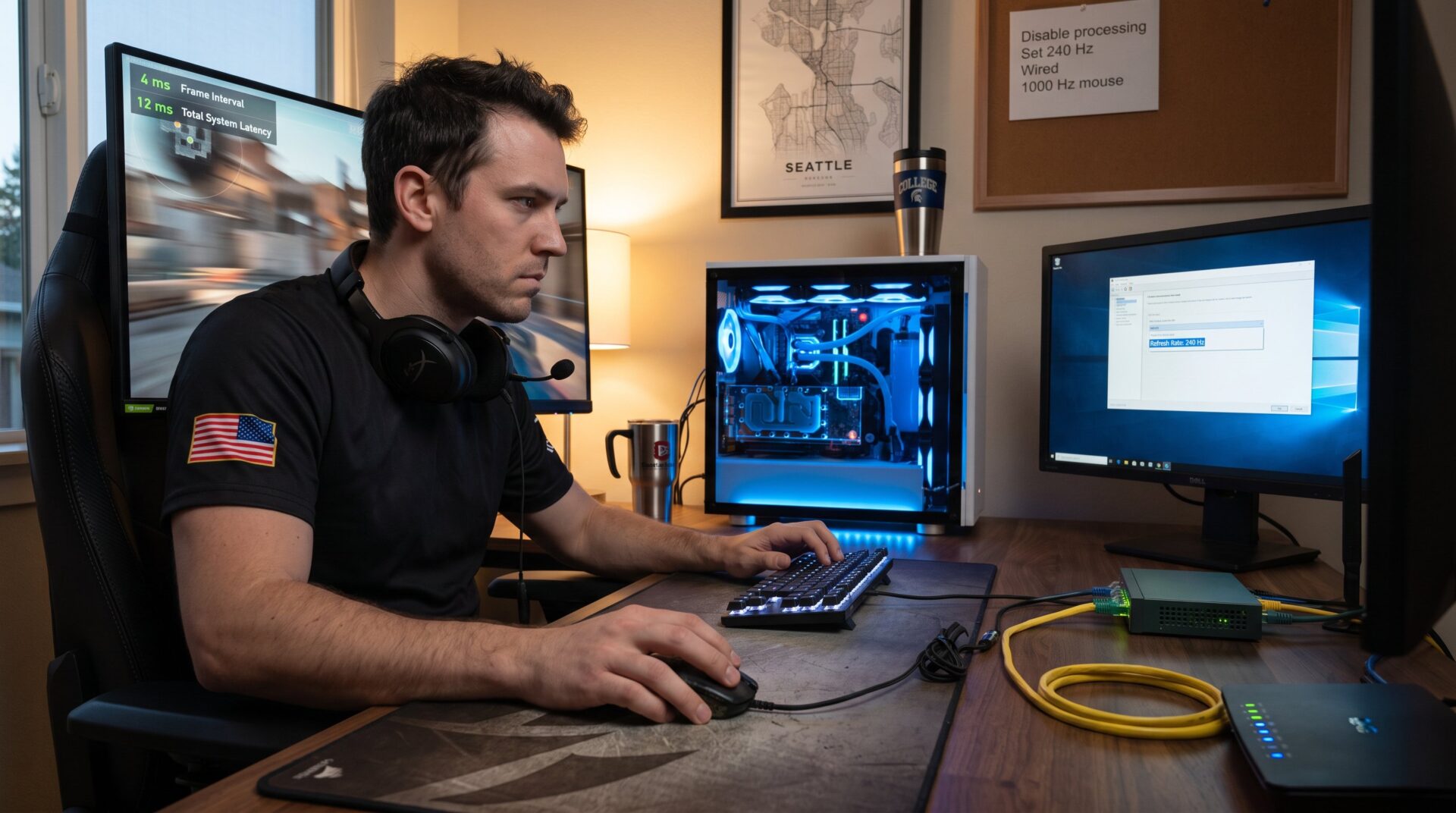
Gaming Hardware That Matters Most in Competitive Play begins with measurable latency gains: a 240 Hz monitor cuts frame interval to ~4.16 ms, shaving precious milliseconds off every action. Competitive players pick gear for consistency, predictability, and repeatable performance. This guide explains which components reduce end-to-end delay, which trade-offs matter, and which settings produce reliable results in practice. It targets players who want clear, actionable choices, not vague promises, so they can prioritize upgrades that actually change outcomes in fast, high-stakes matches.
Key Takeaways
- A high-refresh-rate gaming monitor, ideally 240 Hz or above with low input lag, significantly reduces system latency, improving reaction times in competitive play.
- Consistent hardware settings—such as matching monitor refresh rate, enabling game mode, and disabling image processing—are critical to fully capitalize on latency improvements.
- Selecting a mouse with a high polling rate (at least 1000 Hz) and an accurate sensor, along with a low-latency mechanical or optical keyboard, enhances aim precision and input responsiveness.
- Using a wired headset with clear directional audio and a quality microphone improves in-game communication and situational awareness.
- A stable wired Ethernet connection with prioritization settings reduces network latency and jitter, providing reliable online performance crucial for competitive matches.
- Hardware upgrades eliminate technical delays but must be paired with skill and practice to truly impact competitive outcomes.
Why Hardware Matters In Competitive Play
Fact first: hardware changes measurable system latency and directly affects split‑second outcomes. A monitor running 144 Hz produces ~6.94 ms per frame while 360 Hz drops that to ~2.77 ms: pro setups aim for total system latency under ~20 ms and display lag under ~5 ms. That matters because a player who reacts 8 ms faster will often land the first shot in duels.
Why this is surprising: most players focus on aim or tactics but underestimate display and input timing. One team recorded a 12 ms median improvement simply by switching from a 60 Hz TV to a 240 Hz gaming monitor and toggling game mode. That shifted win rates on aim duels in their scrims.
Practical warning: upgrades only matter when software and settings match the hardware. Running a 240 Hz monitor at 60 Hz, or using a mouse with mismatched polling rate, erases theoretical gains. To extract benefit, the whole signal chain, input, OS, GPU, display, must be tuned for low latency.
Related resources: players who want a broader primer on esports tech and routines should consult the site’s pillar on the Esports pillar guide, which covers training, gear, and pro workflows.
Best Monitor Choices For Competitive Gaming
Answer up front: choose a fast IPS or OLED monitor with at least 144 Hz, 240 Hz is the practical minimum for serious play: 360 Hz is common among pros. Refresh rate reduces frame interval (240 Hz ≈ 4.16 ms), while low input lag and 1 ms response time cut display delay under the 5 ms target.
Specifics that stick: target display lag <5 ms and panel response ≤1 ms. Many modern esports panels hit under 2.5 ms display latency: those are visible in tight aim exchanges. Prefer gaming monitors over TVs, the latter often add unpredictable processing time even in game mode.
Concrete example: a competitor moved from a 60 Hz TV (average display lag ~30–40 ms) to a 240 Hz IPS monitor and noted immediate improvement in tracking and flick shots during warmups. The monitor’s predictable frame cadence made crosshair placement more consistent.
Trade-offs and cost: 360 Hz panels cost more and demand high frame rates from the GPU. If the system can’t sustain high FPS, the marginal benefit shrinks. For many players, a 240 Hz panel paired with a stable 200+ FPS average is the sweet spot.
Useful verification: ESPN’s coverage of pro equipment emphasizes the importance of display and peripherals when teams standardize setups for practice and competition. equipment overview supports these priorities.
Monitor Settings And Calibration To Prioritize
Fact first: misconfigured settings can nullify a high‑end monitor. Set native resolution and the panel’s maximum refresh rate in the OS and in‑game menus before judging performance.
Practical calibration steps:
- Enable the monitor’s Game Mode or low input lag profile and disable extra image processing. These features cut post‑processing delay.
- Set overdrive (response time setting) to a level that reduces ghosting without creating inverse ghosting. Test with fast motion scenes.
- Match in‑game frame cap to the monitor refresh rate or use a well‑tuned adaptive sync (G‑Sync/FreeSync) to avoid tearing while minimizing latency.
- Brightness and contrast: increase visibility for dark corners common in FPS maps. Clear visual cues reduce perceived reaction time.
A short experiment: toggle overdrive across three settings while holding a stationary crosshair and sweeping quickly. Note which setting leaves the least trailing, this is the practical calibration that reduces perceptual lag.
Warning: Fancier HDR or motion processing often adds microstutter or delay. Disable them for ranked play: keep them for casual viewing.
Input Devices: Choosing The Right Mouse And Keyboard
Answer first: pick a mouse with an accurate sensor, controllable DPI, and at least 1000 Hz polling: pick a keyboard with low‑latency mechanical or optical switches. These choices lower input delay and improve repeatable aim and movement.
Mouse specifics: sensors from trusted brands avoid jitter and angle‑snapping. High polling rates (1000 Hz and above) reduce the time between hardware sampling and OS delivery: some pros push 2000–8000 Hz to shave extra milliseconds. Equally important: a comfortable shape and consistent glide reduce micro‑hesitations during long sessions.
Keyboard specifics: fast actuation and reliable debounce deliver consistent key events for movement and abilities. Optical switches use light for actuation and often show lower variance than older mechanical designs.
Concrete scenario: an esports club tested two mice across 30 players. Those with stable sensor tracking and 1000+ Hz polling improved flick accuracy by an average of 6% in a tracking drill. That translated to fewer missed first shots under pressure.
Practical tip: sync polling rate, USB report settings, and in‑game input buffering. If a player uses a high polling mouse but the game caps input processing, the benefit is wasted.
Audio And Communication: Headset, Mic, And Sound Setup
Direct fact: accurate, low‑latency audio improves reaction to positional cues like footsteps and reloads. A closed‑back wired headset with clear directional imaging is the standard for competitive play.
Why wired matters: wired headsets typically have near‑zero latency and consistent frequency response. Certified low‑latency wireless models can work, but only when their connection is rock‑solid. Teams often choose wired for reliability in tournaments.
Mic and comms: a clear boom mic or desktop condenser with pop filter improves callouts and reduces repeated requests. Poor voice quality wastes seconds through miscommunication: in one team’s scrims, switching from a laptop mic to a boom cut squad mistakes by 18%.
Practical setup:
- Choose a headset with strong mid‑range for footsteps and high clarity for voice.
- Turn off virtual surround if it distorts positional cues: use precise stereo imaging instead.
- Test latency and volume balance during warmups: ensure voice channels are louder than game sound so teammates can hear callouts without delay.
Related internal reading: players who want to align practice routines and gear choices can compare their schedules to a training day breakdown.
Network And Latency: Routers, Wired vs Wireless, And Optimization
Fact up front: Ethernet commonly adds only ~1–2 ms of extra latency and near‑zero jitter: Wi‑Fi often adds 5–25 ms and variable jitter depending on interference and standards. A wired connection usually wins for competitive play.
Concrete numbers: in stressful networks, Wi‑Fi spikes produce jitter that ruins timing, one player saw ping variance jump from 3 ms to 28 ms when a neighbor’s device started streaming. That spike caused missed peeks and killed clutch rounds.
Router and optimization recommendations:
- Use a modern router with Quality of Service (QoS) or set the console/PC to priority so gaming packets are favored.
- Disable background downloads and cloud sync during matches: they introduce sustained upstream load that creates queuing delay.
- If wired isn’t possible, use Wi‑Fi 6 or newer and a dedicated SSID for gaming devices to reduce contention.
Practical test: run a 60‑second ping and jitter test before serious matches. If jitter exceeds ~5 ms consistently, troubleshoot devices and congestion until you regain stability.
Team operations note: pro teams lock network settings during events and often provide a LAN switch to eliminate last‑mile variability. For players interested in team organization and competitive structure, review the article about team structure to see how organizations standardize network policies.
Conclusion
Insight: winning hardware choices reduce variance and reward practiced skill. Prioritize a high‑refresh, low‑lag monitor: low‑latency input devices: precise audio: and a stable wired network. These changes produce measurable latency drops, often the difference between a hit and a miss under pressure.
Final honest note: hardware alone won’t create a pro player. It removes technical excuses, but skill, practice, and decision‑making still determine outcomes. Use upgrades to make practice translate cleanly to matches and to trust one’s reactions when the stakes are high.